
Learning & Assessment Software (LAAS) Features
LAAS author engine is a easy to use software designed to create and distribute question databases. There are lot of operations that can be performed using author author, right from creating a new exam to, populating questions, adding students, creating groups, assigning exams and many more. Content engine which is included in author can be used to create lessons and arrange them in levels (like subject, topic, chapters), it allows entering remote URL, text, html, pdf, image, video, audio, multimedia, docx, excel, and ppt files. Assessment engine allows candidates to import the exams provided by the author and then take the exams. User can add any number of test/assessment modules (Database created using author engine). Each test/assessment module is treated as a separate exam and can be used independently. One demo exam is added by default to assessment engine.
You can now download and install free demo of our Learning and Assessment software to try all its features. Follow the simple steps given below to install and use the demo software.
1. Downloading the laas demo software
LAAs demo software can be downloaded from the link given below:
2. Installation
Open the download folder, locate the downloaded software and double click on it to start installation.
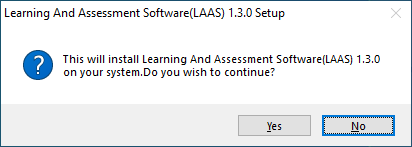
Double-clicking the setup file will popup a message box asking confirmation for installation shown below. Click “Yes” to continue with the installation.
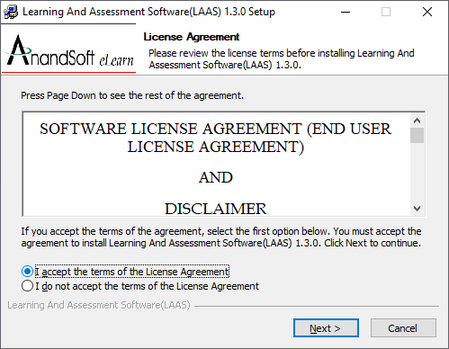
Next step shows the License agreement that the user must accept to continue, so click on the radio button to accept and click “Next”

Next step allows the user to choose the location to install the software. User can browse to desired location or install the software in default location provided.
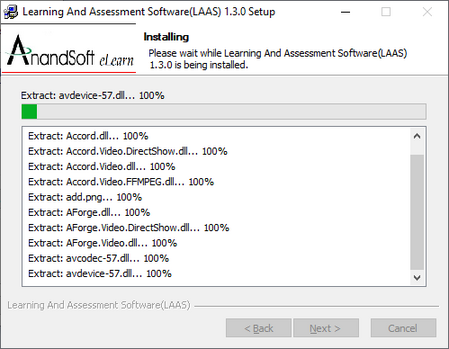
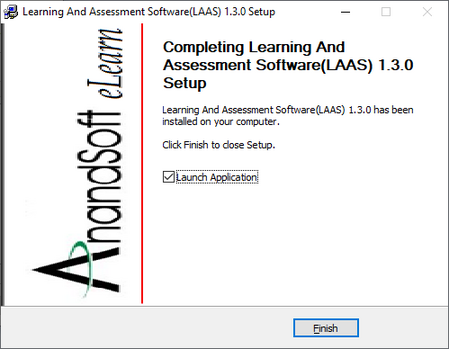
Once the user selects the destination folder, the software will be installed in the specified location, so click the button “Install” to install the software. Final step of the installer allows the user to run the application directly. Click on “Finish” button to launch the application.
3. Start Trial
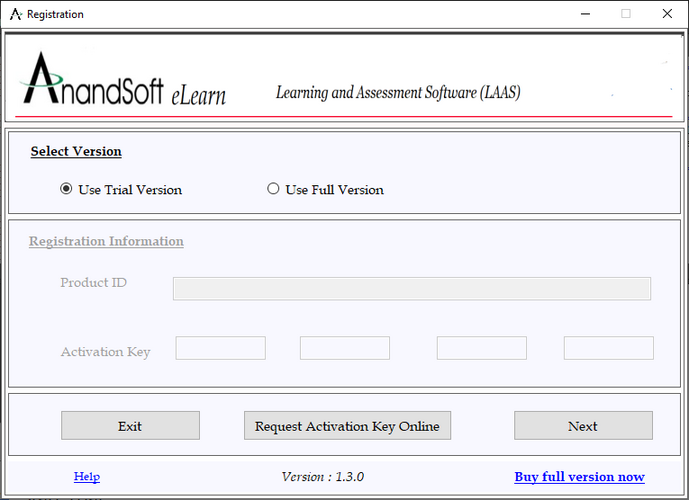
Once you run the application, you will be presented with a registration screen. Select the “Use Trial Version” option and click on Next button.
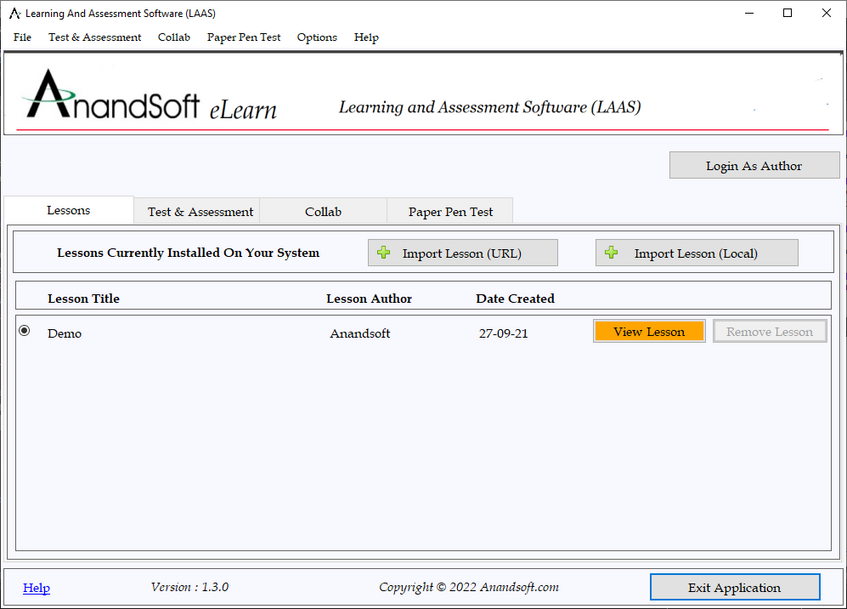
Next screen displayed is the Learning and assessment software engine. This screen provide options to import online/offline tests, lessons and option to login as an admin/author to populate exam database. Now, click on “Login As Author” button to proceed.
You will be presented with a form (shown below) to enter your email id, first name, and last name to start your trail.
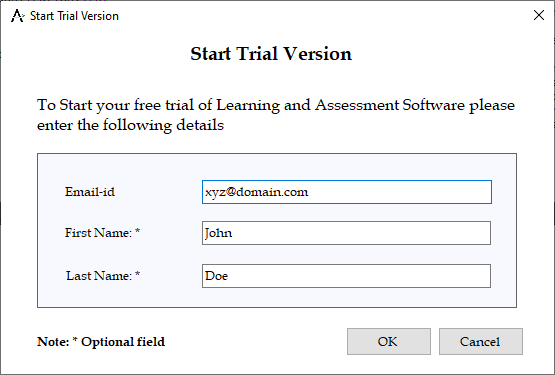
After entering the details click on OK button, your login details will be sent to your email id.
You will receive login details along with trial account activation link in your email id.
4. Login as Admin
After trail account activation you will be able to login as admin using details sent in email.
Next you will be presented with the admin/login form. Enter the details received in the account activation email to login as admin.
Please check out this for additional details for downloading LAAS demo software