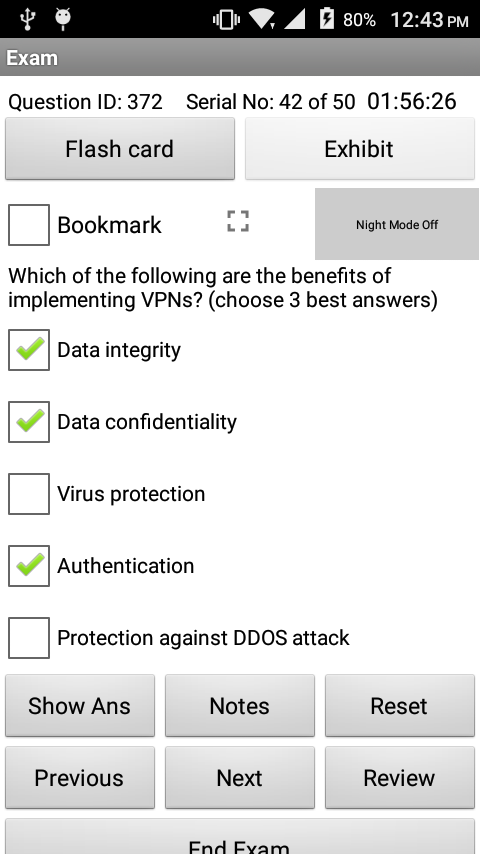
Simulationexams.com has recently updated its CompTIA A+ Core 1 and A+ Core 2 practice tests for mobile devices. The products come in two versions,
1. free version, limited to 60 questions, and
2. full version with 300+ questions with flashcard explanation.
Question types supported are
Multiple choice single answer
Multiple choice multiple answer
Drag and drop (Text, Image)
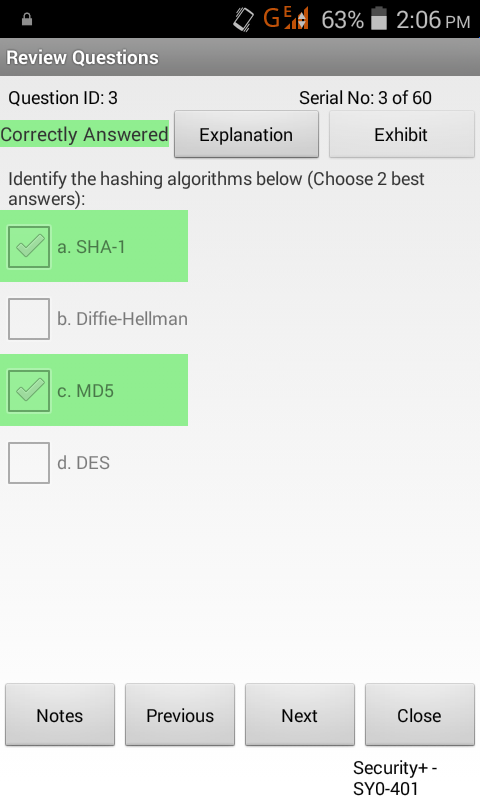
Complete explanation is provided for each question in Learn mode, and actual exam environment is simulated in Exam mode. Options to save the results and reviewing questions are provided.
You can get the software by clicking on the links below:
Exam Screen with Multiple choice single answer questionImage Drag and Drop type question
Disclaimer: Simulationexams.com is not associated or not affiliated with CompTIA® or any other company. A+ is the trademark of the CompTIA organization and is duly acknowledged.
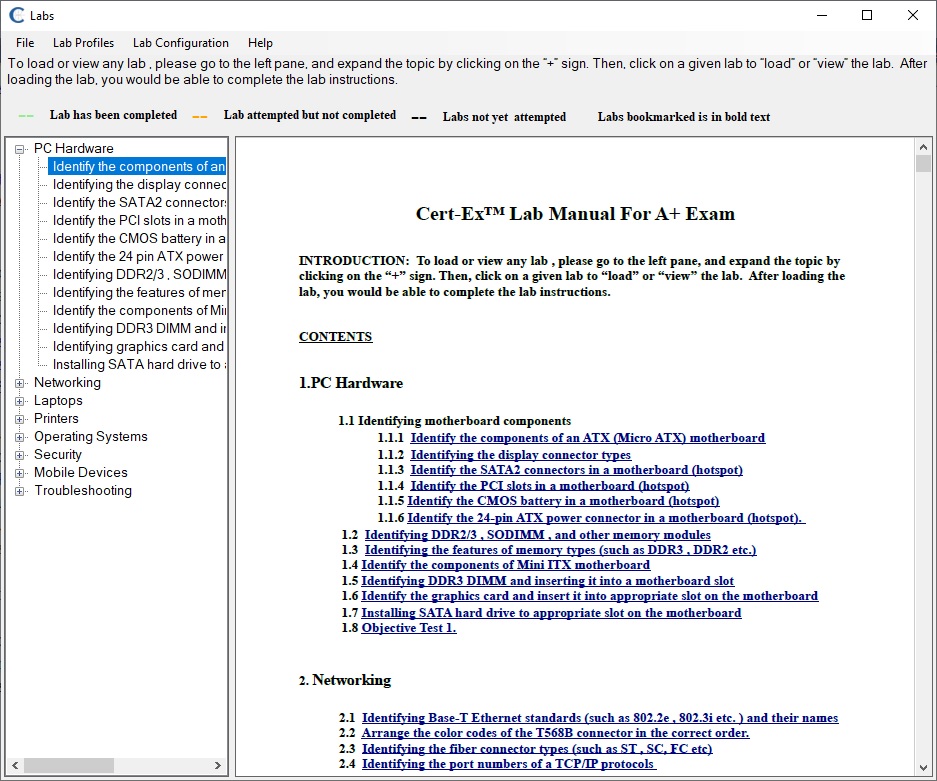
The Lab Sim A+ will provide you with the necessary platform to gain hands on skills in fundamental computer technologies. This Practice Lab for A+ core 2 focuses on the practical aspects of the A + core2 exam objectives. By completing the lab tasks, you will improve your practical skills in supporting, installing, configuring and maintaining Operating Systems, maintaining Microsoft Windows and troubleshooting Microsoft Windows and networks, managing users, workstations and shared resources, security and implementing operational procedures.
Several lab exercises are made available with the lab simulator. Complete list of labs is available with the Labs Manual of the downloaded software.
Lab Simulator Features:
Include 100+ practice Lab exercises
Lab manual with detailed steps for each lab exercise
Detailed help files that provide step by step instructions on using the simulator have been provided.
The demo version is limited to a fewer labs.
Several new features such as
Ability to enable/disable navigation buttons
Administrator login for lab profiles configuration
Saving and reloading half completed labs
Resetting individual and all labs to default
Marking not attempted, not completed , completed labs in different color for easy identification.
Learning & Assessment Software (LAAS) Features LAAS author engine is a easy to use software designed to create and distribute question databases. There are lot of operations that can be performed using author author, right from creating a new exam to, populating questions, adding students, creating groups, assigning exams and many more. Content engine which is included in author can be used to create lessons and arrange them in levels (like subject, topic, chapters), it allows entering remote URL, text, html, pdf, image, video, audio, multimedia, docx, excel, and ppt files. Assessment engine allows candidates to import the exams provided by the author and then take the exams. User can add any number of test/assessment modules (Database created using author engine). Each test/assessment module is treated as a separate exam and can be used independently. One demo exam is added by default to assessment engine.
You can now download and install free demo of our Learning and Assessment software to try all its features. Follow the simple steps given below to install and use the demo software.
1. Downloading the laas demo software
LAAs demo software can be downloaded from the link given below:
Open the download folder, locate the downloaded software and double click on it to start installation.
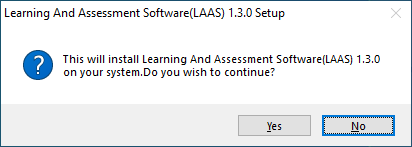
Double-clicking the setup file will popup a message box asking confirmation for installation shown below. Click “Yes” to continue with the installation.
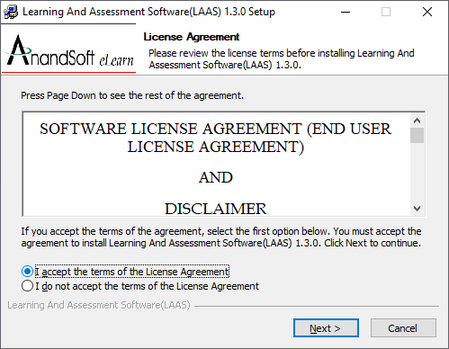
Next step shows the License agreement that the user must accept to continue, so click on the radio button to accept and click “Next”
Next step allows the user to choose the location to install the software. User can browse to desired location or install the software in default location provided.
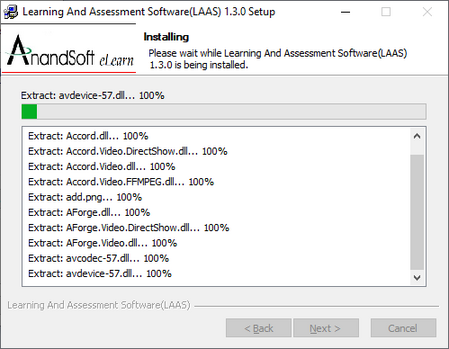
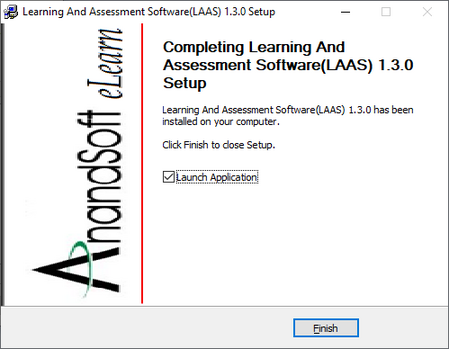
Once the user selects the destination folder, the software will be installed in the specified location, so click the button “Install” to install the software. Final step of the installer allows the user to run the application directly. Click on “Finish” button to launch the application.
3. Start Trial
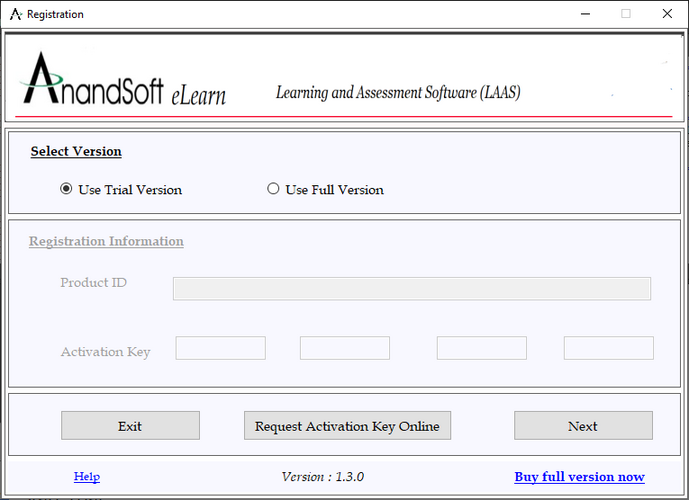
Once you run the application, you will be presented with a registration screen. Select the “Use Trial Version” option and click on Next button.
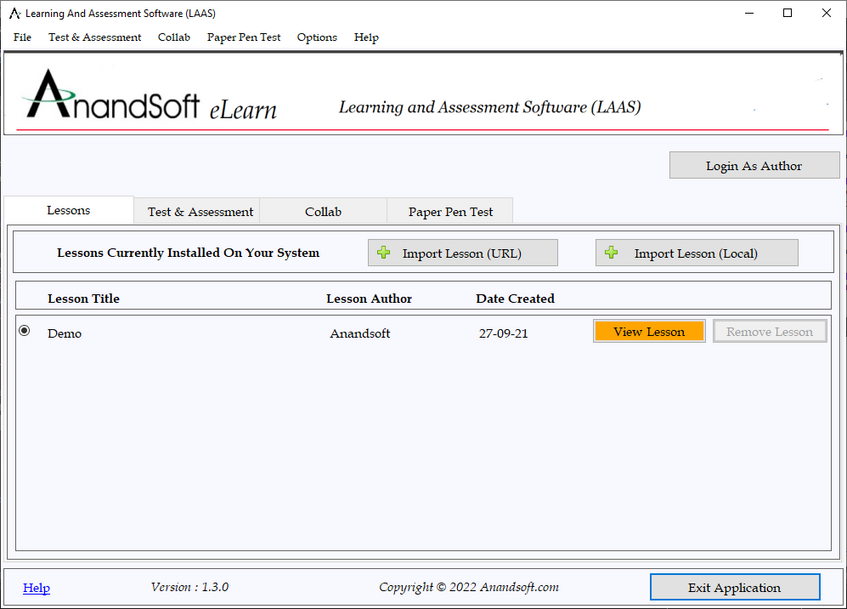
Next screen displayed is the Learning and assessment software engine. This screen provide options to import online/offline tests, lessons and option to login as an admin/author to populate exam database. Now, click on “Login As Author” button to proceed.
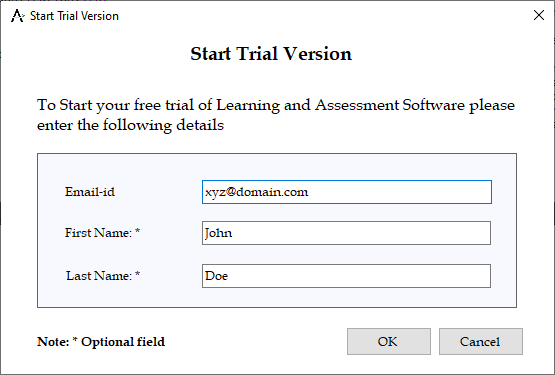
You will be presented with a form (shown below) to enter your email id, first name, and last name to start your trail.
After entering the details click on OK button, your login details will be sent to your email id.
You will receive login details along with trial account activation link in your email id.
4. Login as Admin
After trail account activation you will be able to login as admin using details sent in email.
Next you will be presented with the admin/login form. Enter the details received in the account activation email to login as admin.
Please check out this for additional details for downloading LAAS demo software
LMS, short for Learning and Management System is widely used by schools, colleges, and organisations for online learning, assessment, and management. It is a software application that can be used to create, deliver, and manage online learning content and resources. LMS can also be used to track and report on the progress of learners. It helps the institutions to manage and monitor the learning process of the students.
Learning Management System
The features and functionalities of an LMS may vary depending on the purpose it is being used for. For instance, an LMS meant for academic purposes will have different features than one used for employee training in an organisation. Similarly, a corporate LMS will have a different set of features than one used in a school. The system can run on an organisation’s servers and it is used to manage the learning process of that organisation. It is responsible for the creation, administration, and delivery of online courses, quizzes, and tests. An LMS is used to track the progress of learners and to store, analyze and report their records. It is a software application that can be used to create, deliver, and manage online learning content and activities. It is also used to track and assess the progress of learners. It stores the data of the learners and educators and helps them to communicate with each other. The most important function of the LMS is to provide a platform where the learners can access the learning materials and the educators can monitor the progress of the learners.
Another important factor is the availability of LMS delivery platform in all prominent operating systems and devices. For example, LMS android app and LMS MAC app cover those having android or MAC devices.
Download the free LMS software from simexams.com and try it before you buy. It is essential that one try the software before procurement as it is a long term investment and should fulfill organisational goals.
Configuration Statement Hierarchy
The Junos OS configuration consists of a hierarchy of statements. There are two types of statements:

Container statements, which are branches that can contain other statements (including additional container statements or leaf statements). Container statements at the top of the hierarchy are considered to be the trunk of the hierarchy tree.

Leaf statements (contained by container statements), which do not contain other statements.
The following is the example for Edit system hierarchy level

system {
backup-router address <destination destination-address>;
domain-name <domain-name>;
host-name <host-name>;
}
name-server {
<address>;
}
root-authentication {
(encrypted-password "password" | plain-text-password);
}
}

Please check this for complete juniper Configuration Statements Hierarchy
Supported Commands

You may also look into this for Juniper Available Practice Labs

check out this for Juniper Network Simulator with Designer
Support for major question types asked in computer based exams. Also supports multimedia in questions.
Authoring by multiple authors for fast turnaround time.
Upload bulk questions and candidate details.
Set exam environment for each exam.
Exam result reports include scorecards, time analysis, and topic wise analysis.
Remotely proctor online exams with live image capturing, and geolocation tracking.
Results can be saved to docs/pdfs or printed.
Run from your own server for Enterprise edition.
Customize app to use institute logo.
Excellent support service.
Add Remote URL, text, html, pdf, image, video, audio, multimedia, docx, excel, and ppt files as lessons.
Recently Learning And Assessment Software is updated with following features
Jitsi Collab Features
Jitsi is a collection of free and open-source multiplatform voice, video conferencing and instant messaging applications for the web platform, Windows, Linux, macOS, iOS and Android.
Jitsi Meet is a service provided by 8×8 Inc without any support or guarantee. For complete terms and conditions, please visit https://jitsi.org/meet-jit-si-terms-of-service/
Paper Pen Exam (PPE) Engine Features
Import any number of questions papers
Candidate login before exam is taken
Exam monitoring with image casting, geolocation capturing and screen capturing
Uploading the answer sheet after taking the exam.
Viewing the corrected answer sheet from saved exam results.
Download a free trial version of the software from the product home page,
Product Features: The Computer Based Test Software combines the CBT Author and CBT Exam Engine modules to create centralized question database which can be populated and edited by various Authors. CBT Exam Engine can be used by candiates to login and take exams.
Important features of the CBT (Computer Based Test) software
Authoring by multiple authors for fast turnaround time.
Support for major question types asked in computer based exams. Also supports multimedia in questions.
Support for multiple platforms like Windows/iOS/Android and Mac.
Run from your own server for Enterprise edition.
Upload bulk questions and candidate details.
Set exam environment for each exam.
Remotely proctor online exams with live image capturing, and geolocation tracking.
Exam result reports include scorecards, time analysis, and topic wise analysis.
Results can be saved to docs/pdfs or printed.
Customize app to use institute logo.
Excellent support service.
CBT exam software consists of two main constituent modules
Author software module : The Author module is a easy to use software designed to create and distribute question databases. It supports all the common question types used in online tests. Author can create any number of tests, add /edit/delete questions with ease. Our Preview feature allows the author to see how exactly the questions will be displayed to the exam candidates. Get full list of features for Author module.
Exam software module : Created Question database can be exported from Author module and used on any number of Windows, MAC systems, Android or iOS phones using our CBT Exam Engine Software. Get full list of features for Exam Engine module.
This website uses cookies to improve your experience while you navigate through the website. Out of these, the cookies that are categorized as necessary are stored on your browser as they are essential for the working of basic functionalities of the website. We also use third-party cookies that help us analyze and understand how you use this website. These cookies will be stored in your browser only with your consent. You also have the option to opt-out of these cookies. But opting out of some of these cookies may affect your browsing experience.
Necessary cookies are absolutely essential for the website to function properly. These cookies ensure basic functionalities and security features of the website, anonymously.
Cookie
Duration
Description
cookielawinfo-checkbox-analytics
11 months
This cookie is set by GDPR Cookie Consent plugin. The cookie is used to store the user consent for the cookies in the category "Analytics".
cookielawinfo-checkbox-functional
11 months
The cookie is set by GDPR cookie consent to record the user consent for the cookies in the category "Functional".
cookielawinfo-checkbox-necessary
11 months
This cookie is set by GDPR Cookie Consent plugin. The cookies is used to store the user consent for the cookies in the category "Necessary".
cookielawinfo-checkbox-others
11 months
This cookie is set by GDPR Cookie Consent plugin. The cookie is used to store the user consent for the cookies in the category "Other.
cookielawinfo-checkbox-performance
11 months
This cookie is set by GDPR Cookie Consent plugin. The cookie is used to store the user consent for the cookies in the category "Performance".
viewed_cookie_policy
11 months
The cookie is set by the GDPR Cookie Consent plugin and is used to store whether or not user has consented to the use of cookies. It does not store any personal data.
Functional cookies help to perform certain functionalities like sharing the content of the website on social media platforms, collect feedbacks, and other third-party features.
Performance cookies are used to understand and analyze the key performance indexes of the website which helps in delivering a better user experience for the visitors.
Analytical cookies are used to understand how visitors interact with the website. These cookies help provide information on metrics the number of visitors, bounce rate, traffic source, etc.
Advertisement cookies are used to provide visitors with relevant ads and marketing campaigns. These cookies track visitors across websites and collect information to provide customized ads.